WhatsApp message templates
What templates are, when you need them, how to create one in Meta, and ready-to-copy examples.
About 10 minutes, plus Meta’s review · steps checked October 2026
- 1
When you need a template
For 24 hours after a customer’s last message, you and the AI can reply freely.
After that, WhatsApp only allows approved templates: fixed messages with blanks like {{1}} for the name or order number. Once the customer answers, the chat is open again for 24 hours.
- 2
Pick the right category
Utility: updates about something the customer asked for (order shipped, appointment reminder, payment link).
Marketing: offers, new arrivals, back in stock.
Authentication: login codes. Not needed for most shops.
Meta bills each template message to your business; the category sets the price. Choosing the wrong category is the most common reason for rejection.
- 3
Create a template in WhatsApp Manager
Open WhatsApp Manager → Message templates → Manage templates and click Create Template.
1. Set up template: pick the category tab (Marketing, Utility or Authentication) and the type, then Next.
2. Edit template: give it a name in lowercase with underscores (e.g. order_shipped), the language, and the body. Use {{1}}, {{2}} for the parts that change and add a sample for each. Header, footer and buttons are optional.
3. Submit for Review.
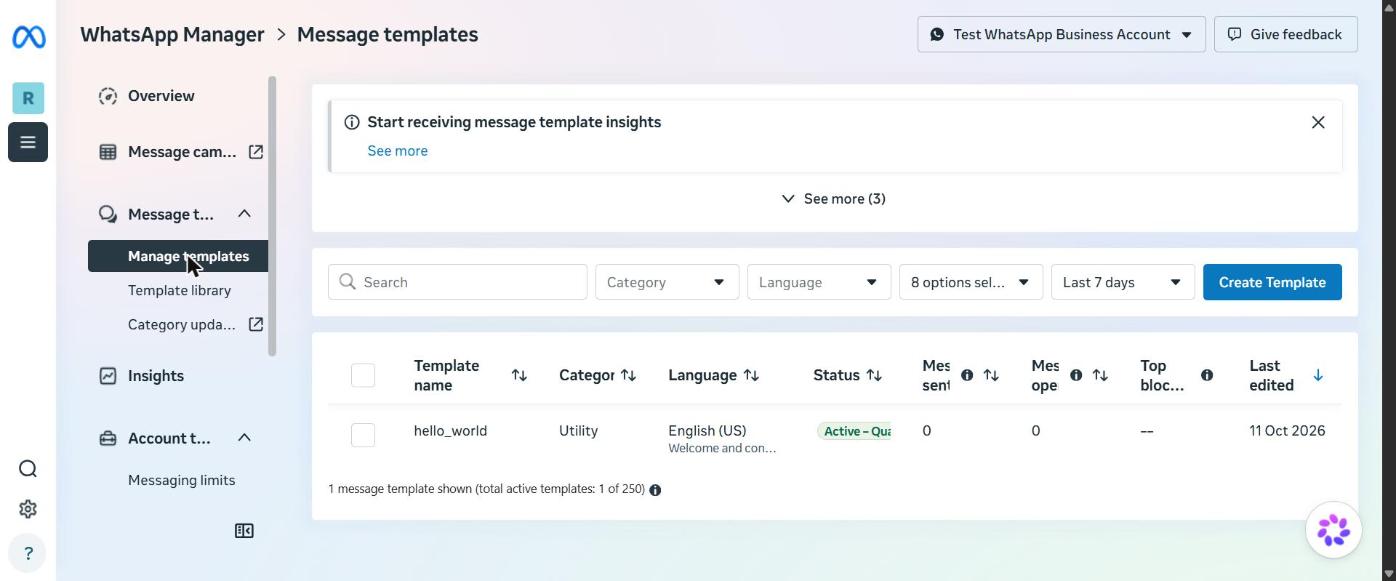
WhatsApp Manager → Manage templates: your templates and their status, with Create Template at the right. (click to enlarge) 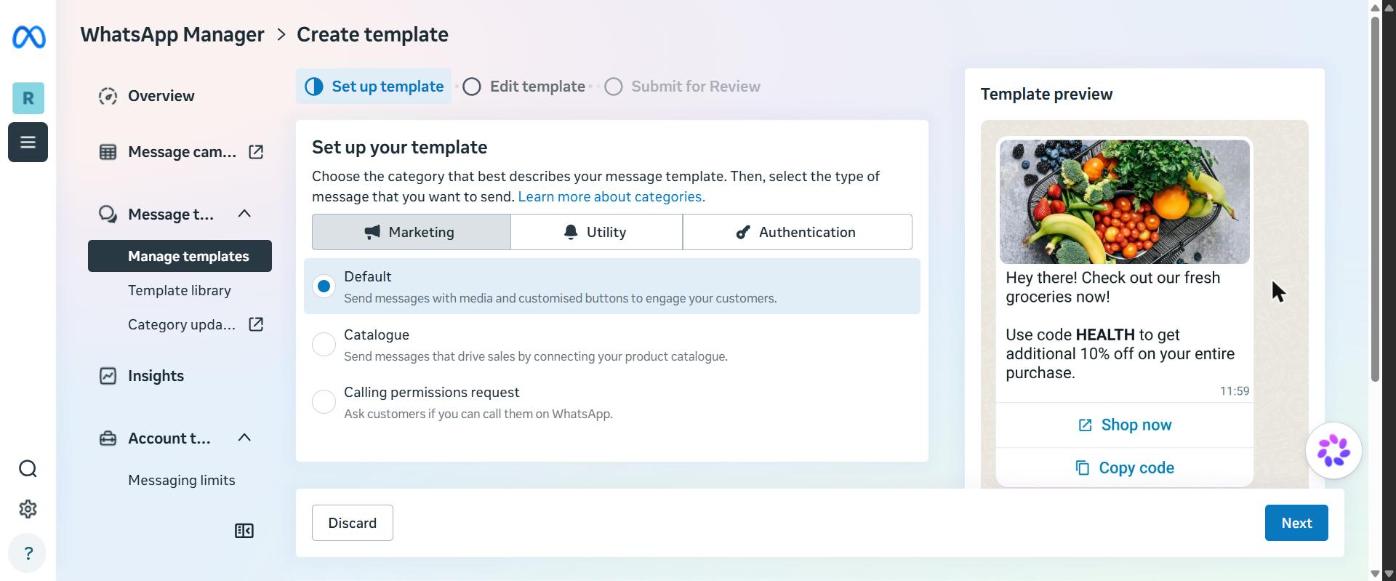
Create template: three stages at the top, the category tabs below. (click to enlarge) Do not start or end the message with a {{variable}}, and do not put promotions in a Utility template: Meta will reject it.
- 4
Wait for approval
Most templates are reviewed in minutes; some take up to 24 hours. The status shows in WhatsApp Manager: In review, Active (approved) or Rejected (with the reason).
Only approved templates appear in ReplySathi.
- 5
Send it from ReplySathi
Open the chat in the Inbox. When the 24-hour window has closed, click Choose a template, fill in the blanks, and send.
Templates come from the WhatsApp Business Account of the number that chat belongs to.
- 6
Ready-to-copy examples
order_shipped (Utility): Hi {{1}}, your order {{2}} has been shipped. Track it here: {{3}}
payment_link (Utility): Hi {{1}}, here is the payment link for your order {{2}} of ₹{{3}}: {{4}}. Reply here if you need any help.
appointment_reminder (Utility): Hi {{1}}, this is a reminder of your {{2}} appointment on {{3}} at {{4}}. Reply YES to confirm or NO to reschedule.
demo_class_reminder (Utility): Hello {{1}}, your free demo class for {{2}} is on {{3}} at {{4}}. Reply here if you need directions.
back_in_stock (Marketing): Hi {{1}}, good news: {{2}} is back in stock in your size. Reply BUY to order or STOP to stop these messages.
Keep templates short and specific to one purpose. Add a sample value for every {{number}} when you submit.
The callback URL and verify token are shown, with Copy buttons, in your dashboard under Channels → Webhooks and in the guide there. Stuck? Contact us or raise a request from Support in your dashboard.